How to Modify HTTP Headers in Chrome
Three practical methods for request headers, plus the right way to test response headers—without confusing what Chrome DevTools can and cannot do.
Quick answer: use an MV3 extension for repeatable page requests, fetch() for a single API call, DevTools Network conditions for User-Agent testing, and Local Overrides for response headers.
Choose the right method
| Goal | Best method | Persists after reload? | Main limitation |
|---|---|---|---|
| Change request headers on normal page traffic | MV3 header extension | Yes, until paused or removed | Extension permissions and browser restrictions still apply |
| Send one test API request with a custom header | Console fetch() | No | CORS and forbidden-header rules still apply |
| Test a different User-Agent | DevTools Network conditions | While the override is active | Designed for User-Agent, not arbitrary request headers |
| Prototype a response-header change | DevTools Local Overrides | Locally, while Overrides are enabled | Changes only your local response, not the server |
Method 1 — Modify request headers with an MV3 extension
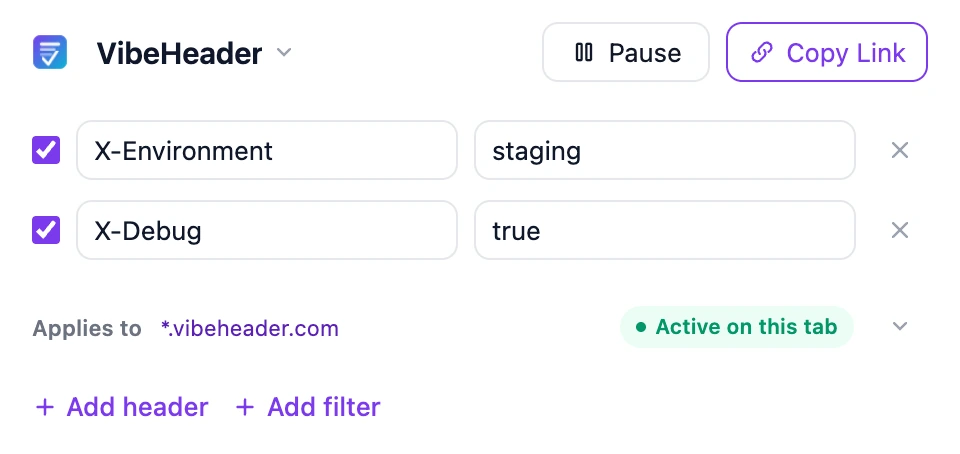
This is the practical route when a page or application must repeatedly send the same custom request header. The example below uses VibeHeader, a focused Manifest V3 request-header editor.
Step 1: Install and open the extension
Install VibeHeader from the Chrome Web Store, pin it if you want quick access, and open the popup.
Step 2: Add a request header
Enter the header name and value. Safe development examples include:
X-Debug: true
X-Environment: staging
X-Test-Variant: checkout-v2
Use a real Authorization or API-key value only when necessary. Keep credentials short-lived, never publish them, and remove the entry after testing.
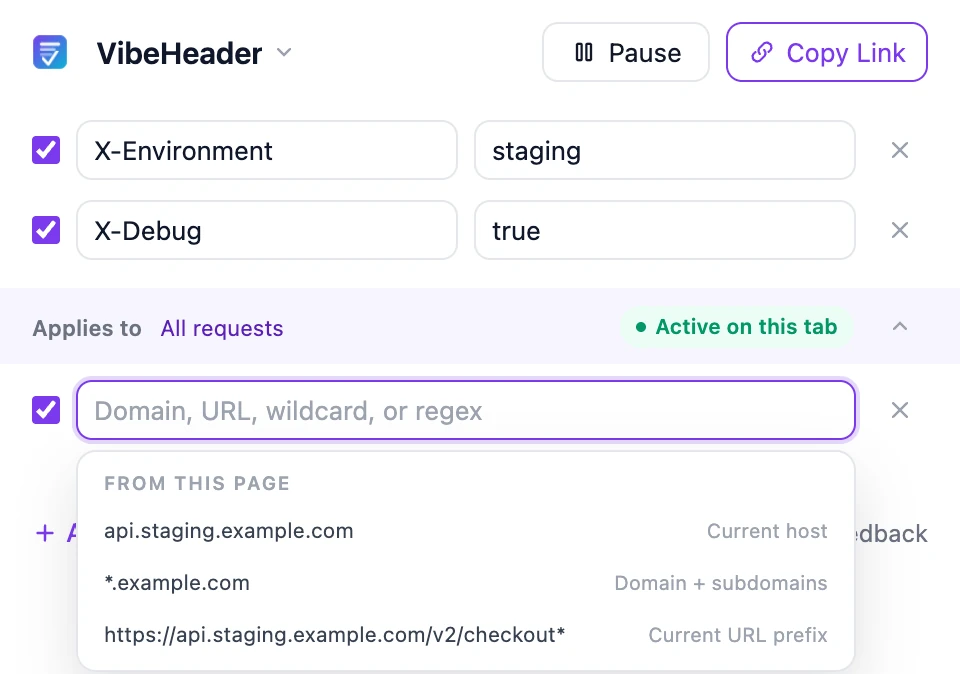
Step 3: Limit where the header applies
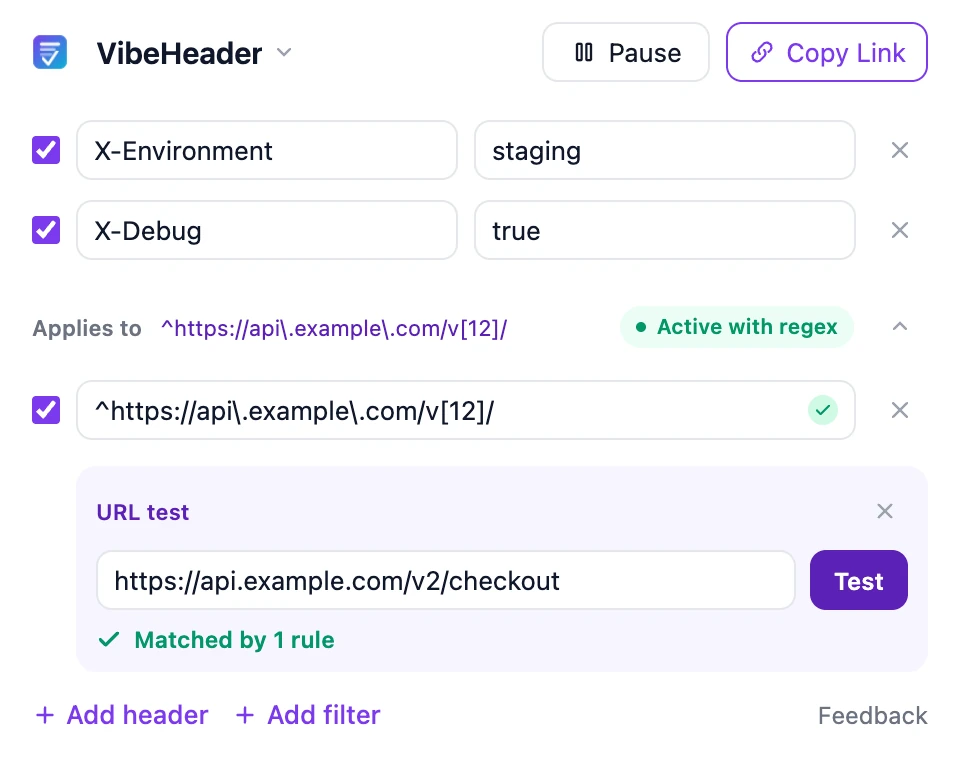
Add a Request Filter so a test header does not reach unrelated sites. Start with one of the three suggestions from the current page, or use a wildcard or regular expression for a more precise rule. Test the exact API or asset URL before relying on it.
Step 4: Enable, reload, and verify the outgoing request
- Open Chrome DevTools with F12, Ctrl+Shift+I, or ⌘+⌥+I.
- Select Network and reload the page.
- Click the document, fetch, or XHR request you want to inspect.
- Open Headers and find your value under Request headers.
If DevTools says “Provisional headers are shown,” disable the browser cache while DevTools is open and trigger the request again.
Method 2 — Send one custom request with fetch()
For a single API test, open DevTools → Console and send the request explicitly:
fetch('https://api.example.com/status', {
  headers: {
    'X-Debug': 'true',
    'X-Test-Variant': 'checkout-v2'
  }
}).then(response => response.json())
  .then(console.log);
This changes only that fetch() call. It does not modify the page’s other requests, and cross-origin requests must still satisfy CORS. Some browser-controlled headers cannot be set from JavaScript.
Method 3 — Override User-Agent in Chrome DevTools
Chrome DevTools has a dedicated request-header override for User-Agent testing:
- Open DevTools and press Ctrl+Shift+P or ⌘+Shift+P.
- Run Show Network conditions.
- Clear Use browser default under User agent.
- Select or enter a User-Agent, then reload the page.
This changes how the browser identifies itself to the server; it does not turn DevTools into a general-purpose request-header editor. See Chrome’s official User-Agent override guide.
What about HTTP response headers?
Request and response headers travel in opposite directions. VibeHeader’s current interface focuses on request headers. For a local response-header experiment, Chrome DevTools can use Local Overrides:
- Open DevTools → Network and reload the page.
- Right-click a request and choose Override headers.
- Select a local folder when Chrome asks where to store overrides.
- Edit or add the response header, save, and reload.
This is useful for locally prototyping headers such as Content Security Policy or CORS responses, but it does not change the real server configuration. Follow Chrome’s official Local Overrides documentation.
Why the modified request header may not appear
- The request was already sent: keep Network recording on and reload after enabling the configuration.
- The page used cache: enable Disable cache in DevTools and retry.
- You inspected the response section: look under Request headers, not Response headers.
- The configuration is paused: resume it before reloading.
- The browser owns the header: Chrome restricts some headers for security and protocol correctness.
- CORS blocked the call: adding a request header can cause a preflight; it does not bypass the server’s access policy.
- A Service Worker handled the request: test in a fresh profile or temporarily bypass the worker from DevTools when diagnosing.
Security checklist for custom headers
- Prefer staging credentials and short-lived tokens.
- Pause or remove test headers when the task is finished.
- Do not paste a configuration link containing secrets into public issues, chat rooms, analytics tools, or documentation.
- Verify the exact outgoing request in DevTools instead of assuming the change applied.
- Use Request Filters to limit each Profile to the narrowest host, domain, URL prefix, wildcard, or regular expression that fits the test.
Need only one custom header? See the shorter custom request-header tutorial. Want the browser API details? Read the Manifest V3 header editor guide.
Frequently asked questions
Can Chrome DevTools modify arbitrary request headers?
Not for normal page traffic. DevTools supports User-Agent overrides and local response-header overrides. Use an MV3 extension when page requests need repeatable custom request headers.
Can changing a request header fix CORS?
No. CORS depends on browser behavior and server response headers. A new request header may trigger a preflight; it does not grant access to a cross-origin response.
How do I temporarily disable the changes?
Pause the active VibeHeader configuration, reload the page, and verify in Network that the custom value is no longer present.
Can I share a header configuration with a teammate?
Yes. VibeHeader encodes the configuration in a URL fragment for local preview and import. Treat the original link as sensitive whenever it contains credentials.